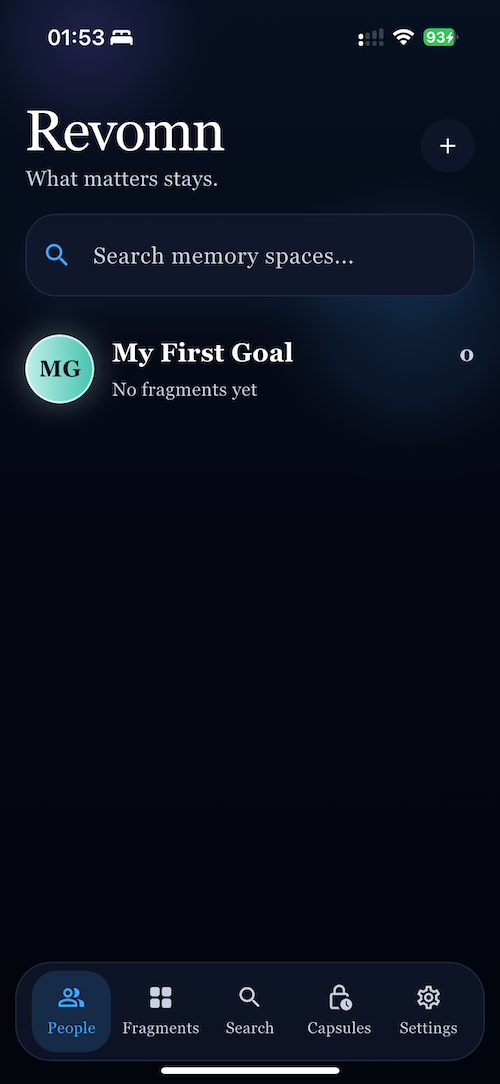
Step 1
Open People
Use the People tab to see your memory spaces. Each space can hold one person, topic, trip, project, or moment.
- Tap the plus button to create a new space.
- Tap an existing space to open its fragments.
 Revomn
Revomn keeps screenshots, chats, photos, videos, voice notes, PDFs, and fragments together in one private place. Use this page for quick answers, feature guidance, and the easiest way to get unstuck.
These screenshots are taken from the app itself, so you can match the help text to what you see on your device.
Use the People tab to see your memory spaces. Each space can hold one person, topic, trip, project, or moment.
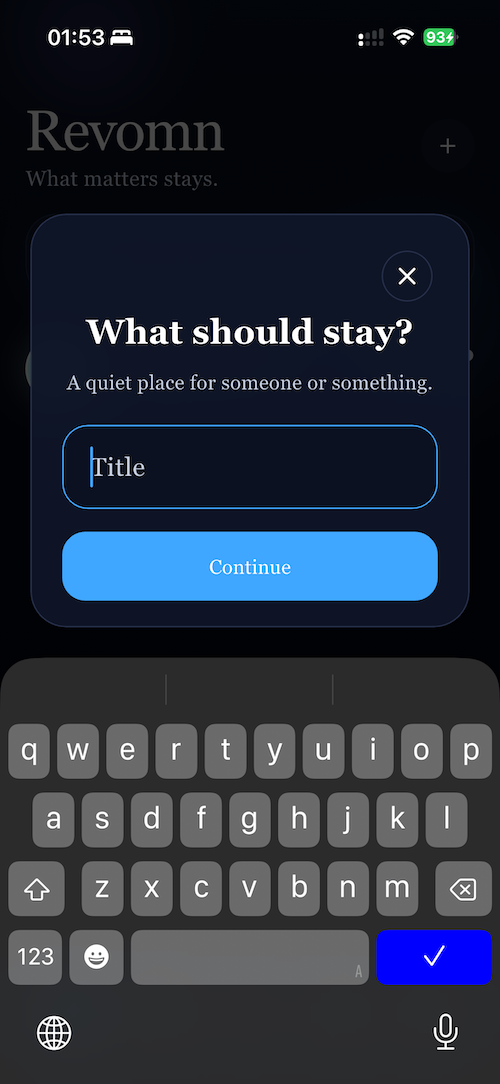
Give the space a title first. You can rename or fine-tune it later from the space options menu.
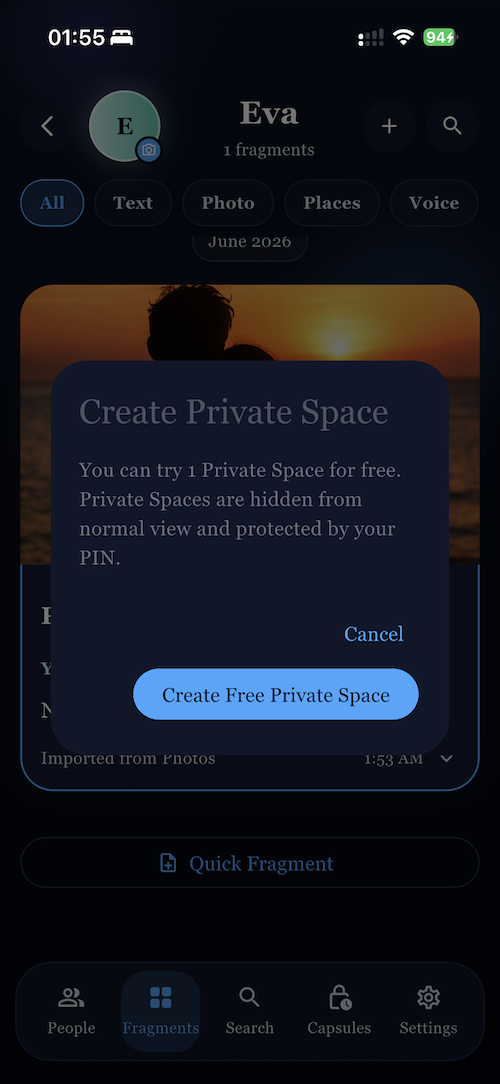
The first private space is free. Private spaces stay hidden from the normal view and can be protected by your Vault PIN.
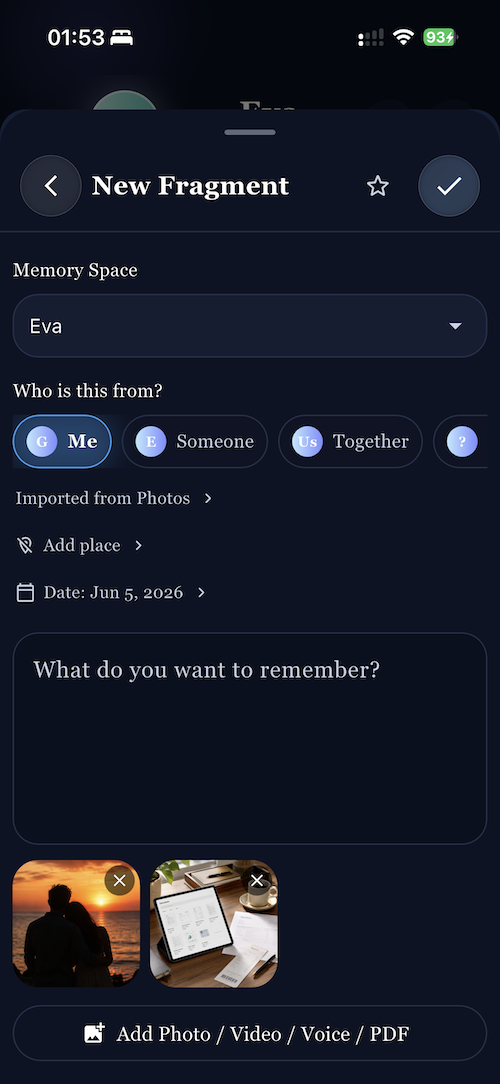
Fragments are the building blocks of Revomn. Add photos, videos, voice notes, PDFs, or a short text memory.
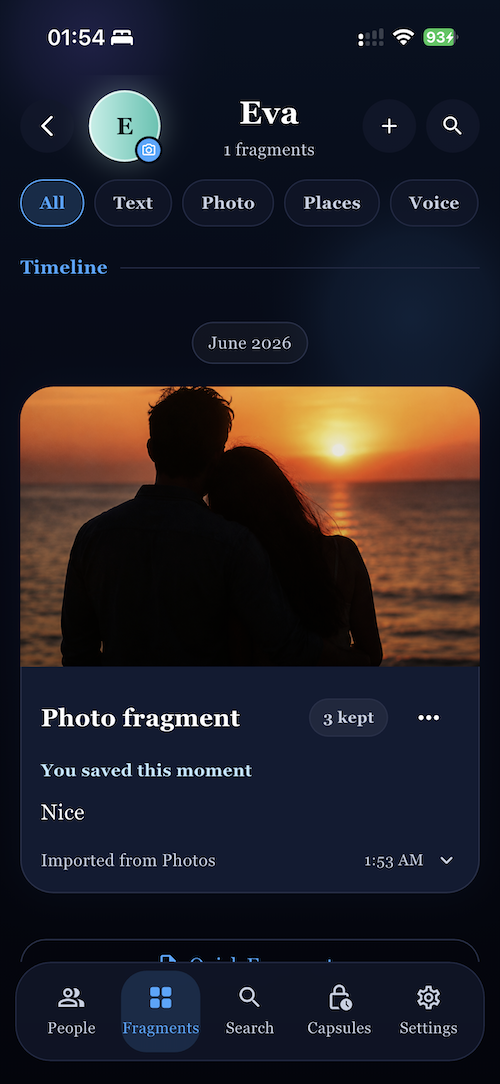
The Fragments tab shows your memories in a timeline, so you can scan what you saved and open the full details.
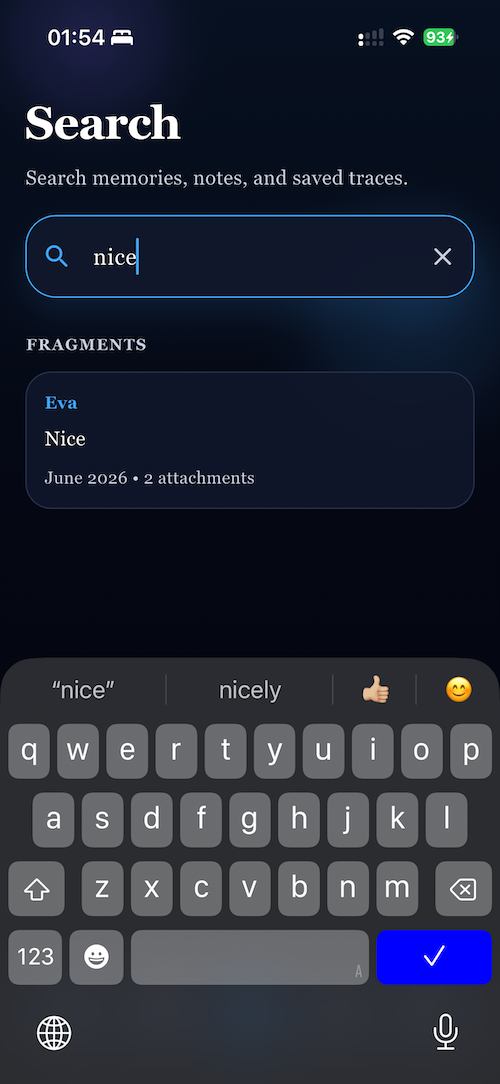
Use Search to quickly find notes, names, phrases, and saved fragments without opening every space one by one.
Start with Vault Lock, move a space into private mode from the avatar menu, then reopen the app and unlock it from the People tab.
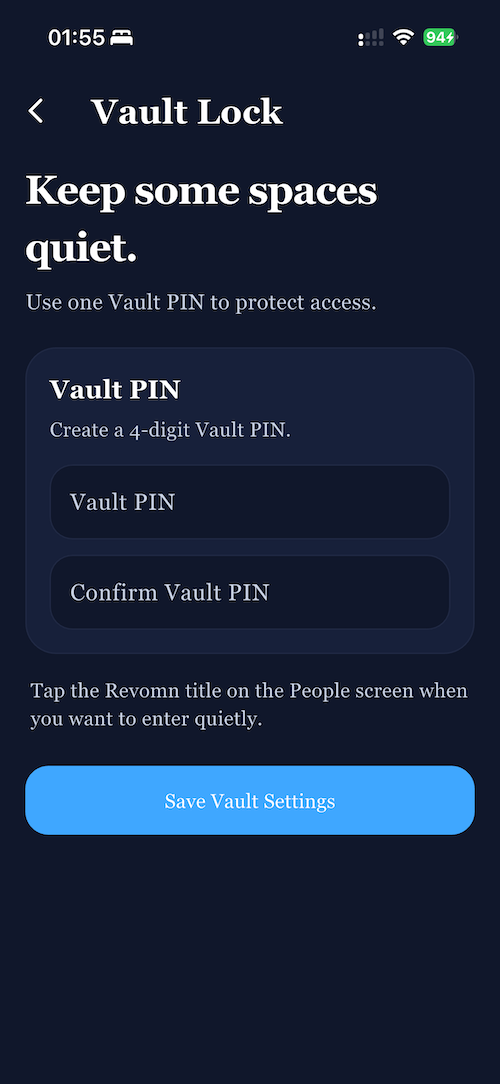
Create a 4-digit Vault PIN in Settings first. You will use it later to unlock private spaces.
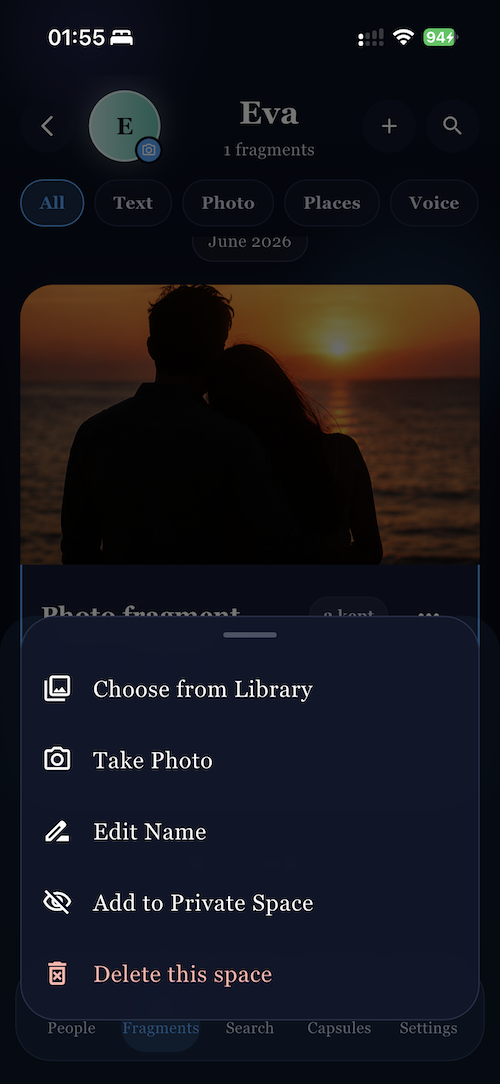
Select a space, tap the avatar icon, and use the bottom sheet to move that space into Private Space.
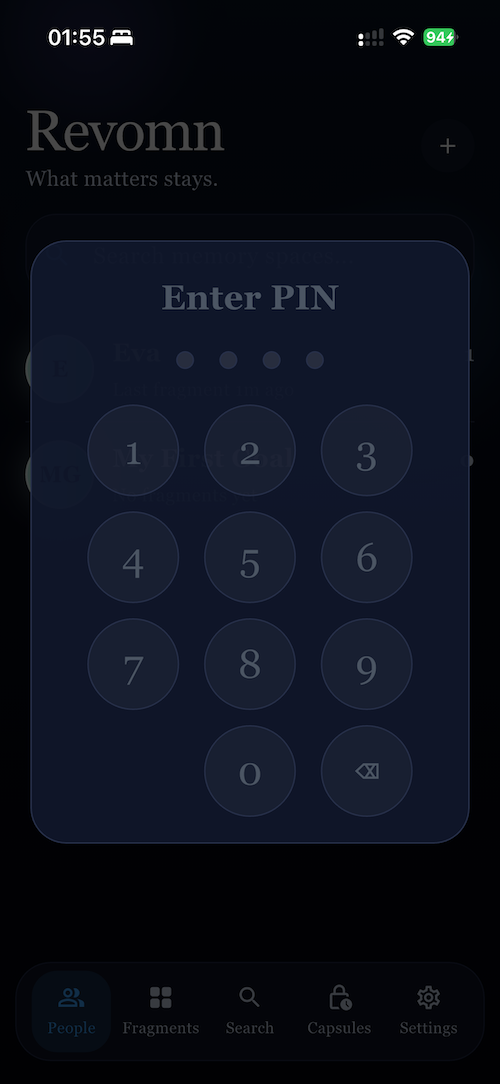
Close the app and open it again. Private spaces stay hidden until you tap Revomn in the People tab and enter the Vault PIN.
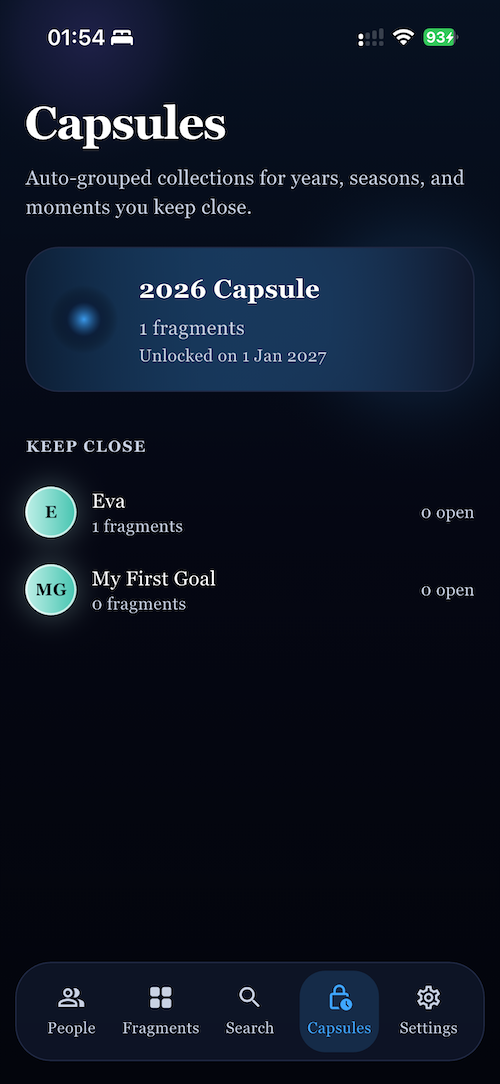
Capsules auto-group memories into years, seasons, and moments, so a large archive still feels easy to browse.
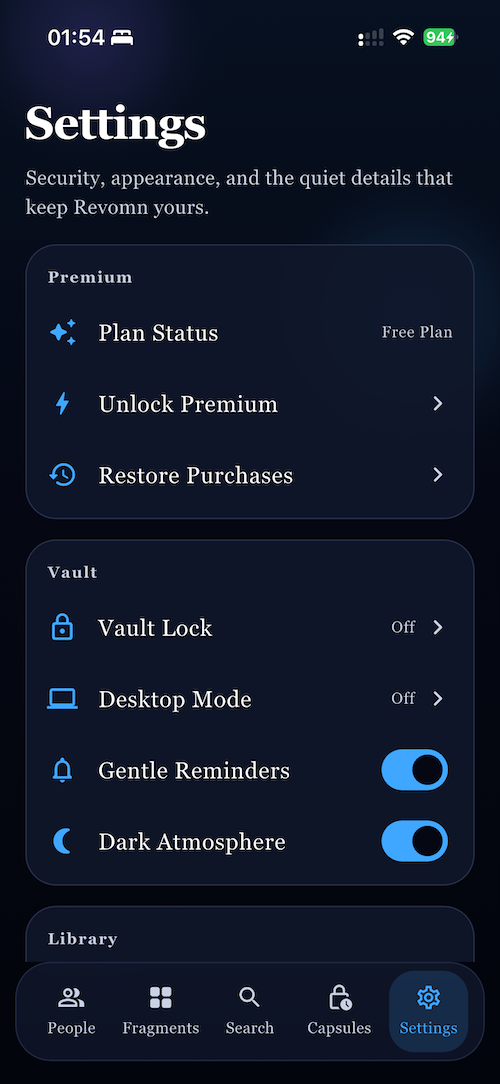
The Settings tab brings together Premium, Vault Lock, Desktop Mode, reminders, appearance, and library stats.
The app lets reviewers and new users explore first, then shows the purchase path only where Premium features start.
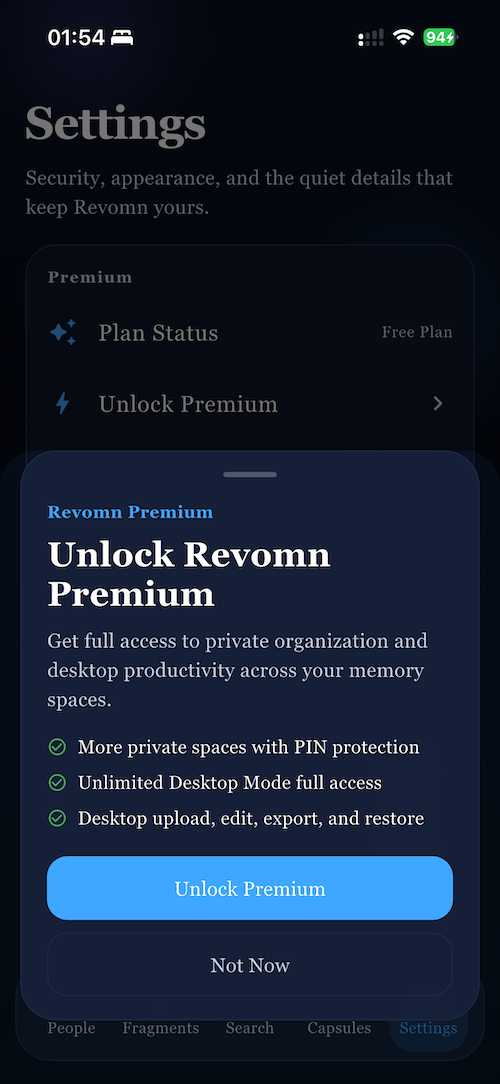
Use the Settings screen to open the native purchase sheet. Premium unlocks the larger desktop and archive features.
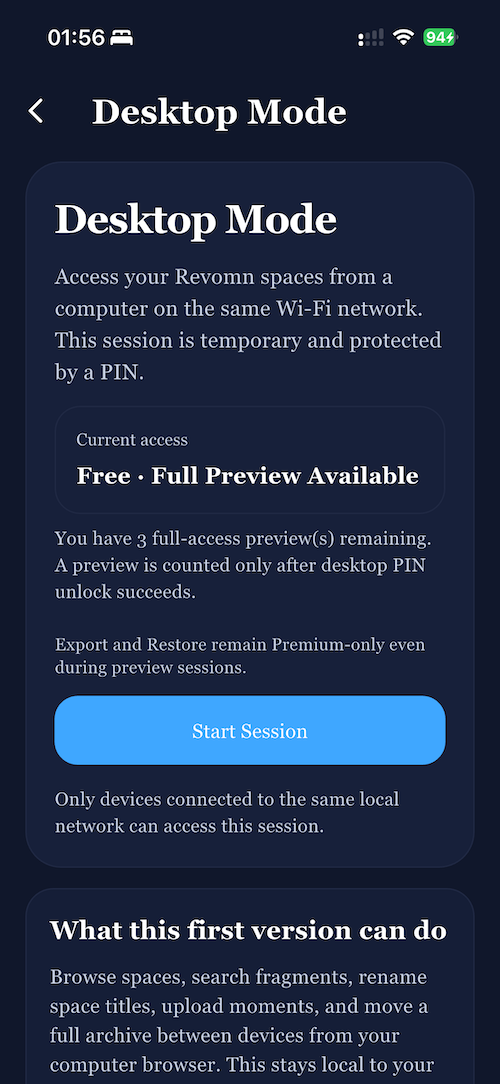
Open Desktop Mode on the phone first, then get ready to start the session from the same screen.
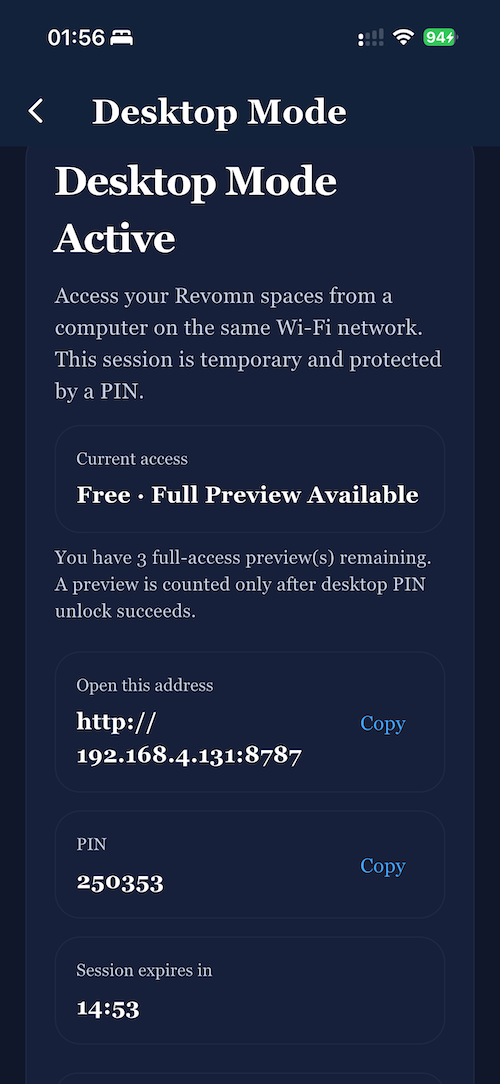
After you tap Start Session, the phone shows the browser URL and the PIN for the desktop workspace.
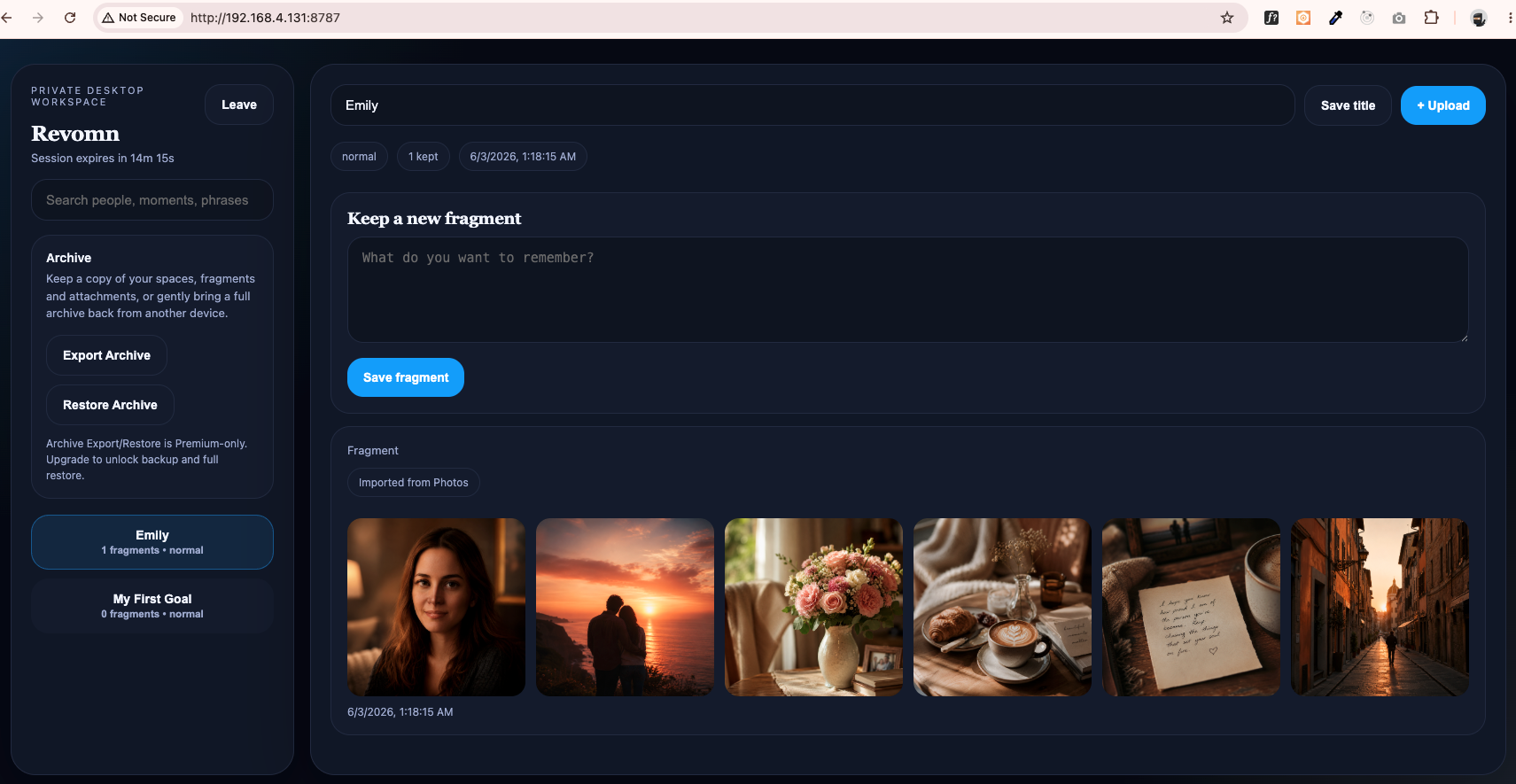
The desktop view is where you can browse, search, and manage your archive on a larger screen with a bit more breathing room.
If you are stuck, this is the quickest place to look. Most questions are about spaces, private content, Premium, or Desktop Mode.
Revomn is designed to keep your memories on your device and on your local network when you use Desktop Mode. You control when archives are exported or restored.
Open Fragments, tap the quick create button, choose the space, then add text, a photo, a video, a voice note, or a PDF. You can also save content from other apps through the share sheet.
The Vault PIN protects private spaces only. It is used to unlock private content and does not change the normal app experience.
Use Search for names, phrases, and notes. You can also browse by People, use the Fragments timeline, or open Capsules for broader time-based groupings.
That is expected after the free preview sessions are used. The app still lets you review your memories, but Premium is required for the full desktop editing and archive tools.
Open Settings and tap Restore Purchases. If your App Store account has a previous lifetime purchase, Revomn restores the Premium state for you.
Send us a short message with what you were trying to do, which screen you were on, and what happened. A screenshot is helpful if you have one.